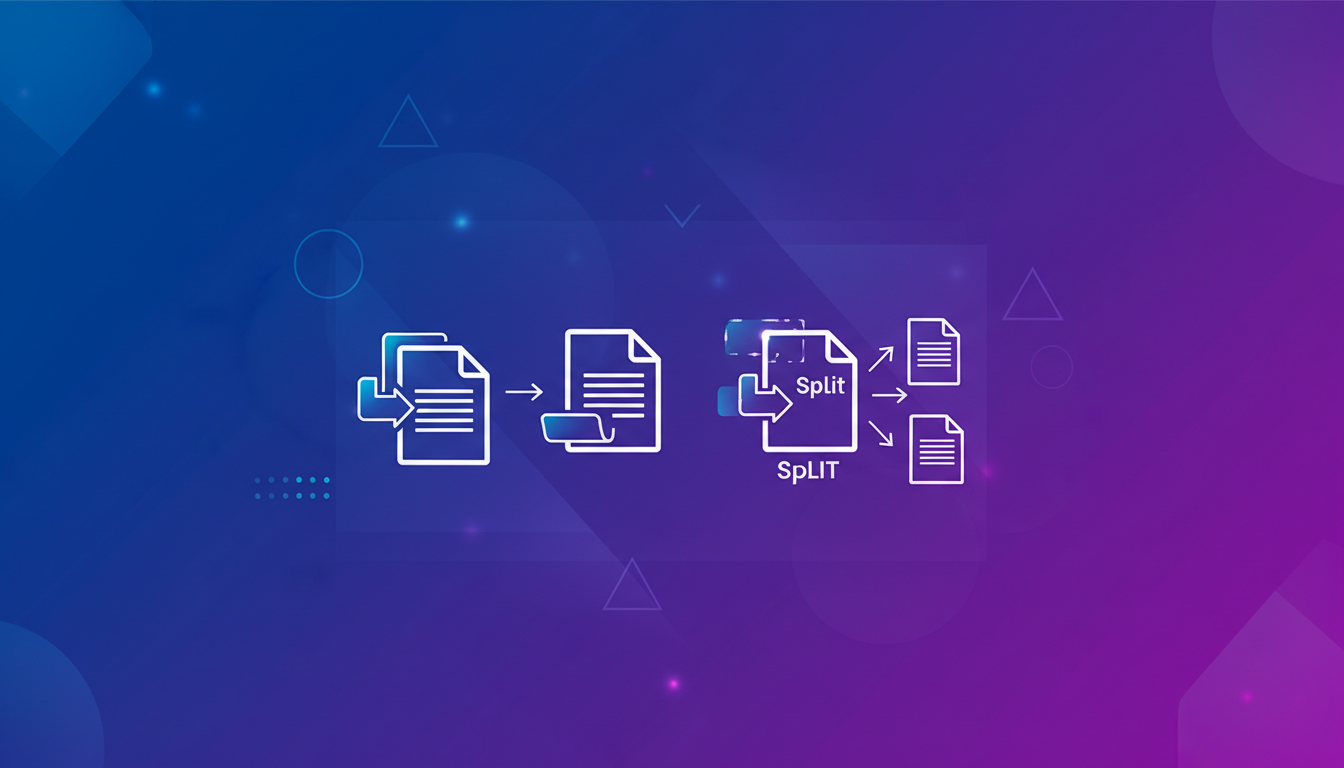
In today’s document-driven world, PDFs reign supreme. They’re the standard for sharing information, archiving important documents, and ensuring consistent formatting across different platforms. However, managing a large number of PDFs can quickly become overwhelming. You might find yourself needing to combine multiple reports into a single comprehensive document, or extract specific pages from a lengthy contract. This is where the power of PDF merge and split tools comes into play.
Imagine trying to manually collate hundreds of pages from various sources, ensuring the correct order and formatting. It’s a time-consuming and error-prone process. PDF merge tools streamline this, allowing you to seamlessly combine multiple PDF files into a single, organized document. Similarly, when you only need a small portion of a large PDF – perhaps a single chapter from a book or a specific clause from a legal document – splitting the PDF allows you to extract precisely what you need, saving time and reducing clutter.
This blog post will guide you through the essential techniques and best practices for effectively merging and splitting PDFs, empowering you to take control of your document workflow and boost your productivity. We’ll cover everything from basic techniques to advanced tips, ensuring you can confidently manipulate PDFs to meet your specific needs. Whether you're a student, a business professional, or simply someone who deals with PDFs regularly, this guide will provide you with the knowledge and tools you need to master PDF manipulation.
Why This Matters: The Business Value of Efficient PDF Management
Efficient PDF management directly impacts business productivity and efficiency. Consider the time wasted manually combining reports, searching through large documents for specific information, or dealing with disorganized files. These seemingly small inefficiencies add up, costing businesses valuable time and resources.
For example, in the legal field, attorneys often need to compile numerous documents into a single, organized file for court filings. A PDF merge tool can significantly reduce the time spent on this task, allowing them to focus on more strategic work. Similarly, in marketing, consolidating multiple campaign reports into a single presentation-ready document can streamline reporting and improve communication.
Beyond time savings, effective PDF manipulation also reduces the risk of errors. Manually collating documents increases the likelihood of misfiling pages or missing crucial information. By using PDF merge and split tools, you can ensure accuracy and consistency in your document management processes.
Furthermore, proper PDF management contributes to better organization and accessibility. By splitting large documents into smaller, more manageable files, you can improve searchability and make it easier to find the information you need when you need it. This not only saves time but also enhances collaboration and knowledge sharing within your organization. The ability to quickly extract and share specific sections of a document can be invaluable in fast-paced work environments.
Complete Guide: Mastering PDF Merge and Split Techniques
Here's a step-by-step guide to merging and splitting PDFs using various methods, from online tools to dedicated software.
1. Using Online PDF Merge Tools:
Online tools are a convenient option for quick and simple PDF merging. They typically require no software installation and are accessible from any device with an internet connection.
-
Step 1: Choose an Online Tool: Many free and paid online PDF merge tools are available. Popular options include:
- Convert Magic (of course!)
- iLovePDF
- Smallpdf
- PDF2Go
-
Step 2: Upload Your PDFs: Most online tools allow you to upload files by dragging and dropping them into the designated area or by browsing your computer's files.
-
Step 3: Arrange the Order (If Necessary): After uploading, you'll usually have the option to rearrange the order of the PDFs. This is crucial for ensuring the final merged document is in the correct sequence.
-
Step 4: Merge the PDFs: Click the "Merge," "Combine," or similar button to initiate the merging process.
-
Step 5: Download the Merged PDF: Once the process is complete, you'll be prompted to download the merged PDF file to your computer.
Example:
Let's say you want to merge three PDF files: report_part1.pdf, report_part2.pdf, and summary.pdf.
- Go to Convert Magic's PDF Merge tool.
- Upload all three files.
- Drag and drop the files to arrange them in the desired order:
report_part1.pdf, report_part2.pdf, summary.pdf.
- Click the "Merge PDFs" button.
- Download the resulting
merged_report.pdf file.
2. Using Online PDF Split Tools:
Similar to merging, online tools provide a quick way to split PDFs into smaller files.
-
Step 1: Choose an Online Tool: Use one of the tools listed above, or search for "PDF Splitter" online.
-
Step 2: Upload Your PDF: Upload the PDF file you want to split.
-
Step 3: Define Split Points: You'll typically have options to split by page ranges (e.g., 1-5, 6-10) or extract specific pages. Some tools also allow you to split the PDF into individual pages.
-
Step 4: Split the PDF: Click the "Split," "Extract," or similar button.
-
Step 5: Download the Split PDFs: You'll usually be able to download the split PDFs individually or as a ZIP file.
Example:
You have a PDF file named large_document.pdf and want to extract pages 10-20 into a separate file.
- Go to Convert Magic's PDF Split tool.
- Upload
large_document.pdf.
- Specify the range as "10-20".
- Click the "Split PDF" button.
- Download the extracted
pages_10-20.pdf file.
3. Using Adobe Acrobat (Paid Software):
Adobe Acrobat is a powerful PDF editor that offers robust merging and splitting capabilities.
-
Merging PDFs:
- Open Adobe Acrobat.
- Go to "Tools" > "Combine Files."
- Click "Add Files" and select the PDFs you want to merge.
- Arrange the files in the desired order.
- Click "Combine."
- Save the merged PDF.
-
Splitting PDFs:
- Open the PDF in Adobe Acrobat.
- Go to "Tools" > "Organize Pages."
- Select "Split."
- Choose how you want to split the PDF (e.g., by number of pages, file size, or bookmarks).
- Click "Split."
- Acrobat will create separate PDF files based on your criteria.
4. Using PDF Libraries in Programming (e.g., Python with PyPDF2):
For more advanced users, programming libraries offer programmatic control over PDF manipulation.
from PyPDF2 import PdfMerger, PdfReader, PdfWriter
merger = PdfMerger()
pdf_files = ["file1.pdf", "file2.pdf", "file3.pdf"]
for pdf_file in pdf_files:
merger.append(pdf_file)
merger.write("merged_file.pdf")
merger.close()
def split_pdf(input_pdf, start_page, end_page, output_pdf):
with open(input_pdf, "rb") as file:
reader = PdfReader(file)
writer = PdfWriter()
for page_num in range(start_page - 1, end_page):
page = reader.pages[page_num]
writer.add_page(page)
with open(output_pdf, "wb") as output_file:
writer.write(output_file)
split_pdf("large_document.pdf", 10, 20, "extracted_pages.pdf")
This Python code snippet demonstrates how to merge and split PDFs using the PyPDF2 library. Remember to install the library using pip install PyPDF2 before running the code. This approach offers maximum flexibility and control for automated PDF processing.
Best Practices for PDF Manipulation
-
Preserve Original Files: Always work on copies of your original PDFs to avoid accidental data loss or corruption.
-
Check File Size: Merging multiple large PDFs can result in a very large file. Consider optimizing the PDF for web viewing or printing to reduce file size. Tools like Convert Magic's PDF Compressor can help.
-
Maintain Consistent Formatting: Ensure that the PDFs you're merging have consistent formatting (e.g., page size, margins, fonts) to create a seamless final document.
-
Verify Page Order: Double-check the page order before merging to avoid errors. Most tools provide a preview feature to help with this.
-
Secure Sensitive Information: If your PDFs contain sensitive information, consider password-protecting them after merging or splitting.
-
Use Bookmarks: When merging large documents, add bookmarks to the table of contents or key sections to improve navigation.
-
Optimize for Search: After merging, consider running Optical Character Recognition (OCR) on the document if it contains scanned images to make the text searchable. Convert Magic offers OCR functionality for this purpose.
Common Mistakes to Avoid
-
Forgetting to Check Page Order: This is a common mistake that can lead to a disorganized final document. Always double-check the page order before merging.
-
Overlooking File Size Limitations: Some online tools have file size limits. If your PDFs are too large, consider using a desktop application or compressing the files before uploading.
-
Using Unreliable Online Tools: Be cautious when using free online tools, as some may compromise your data privacy or add watermarks to your PDFs. Stick to reputable and secure services.
-
Not Backing Up Original Files: As mentioned earlier, always work on copies of your original PDFs to avoid accidental data loss.
-
Ignoring Formatting Issues: Inconsistent formatting can make a merged document look unprofessional. Ensure that the PDFs you're merging have similar formatting styles.
-
Failing to Test Split Points: Before splitting a PDF, carefully define your split points to ensure you extract the correct pages. A test run with a small sample can prevent errors.
Industry Applications
- Legal: Merging legal documents for court filings, splitting contracts for review of specific clauses.
- Education: Combining lecture notes into a single study guide, splitting textbooks into chapters for easier reading.
- Finance: Consolidating financial reports for analysis, extracting specific statements from large account documents.
- Marketing: Compiling marketing campaign reports, splitting presentations for targeted distribution.
- Engineering: Merging technical drawings into a single project file, splitting blueprints for specific construction phases.
- Healthcare: Combining patient records for comprehensive medical history, splitting reports for specialist consultations.
- Publishing: Merging chapters into a complete book, splitting manuscripts for editing and proofreading.
Advanced Tips
- Automating PDF Merging with Scripts: Use scripting languages like Python to automate PDF merging tasks. This is particularly useful for handling large volumes of PDFs or for integrating PDF merging into automated workflows. (See the Python example above).
- Using Command-Line Tools: Command-line tools like
pdftk (PDF Toolkit) provide powerful PDF manipulation capabilities. They can be used to merge, split, rotate, and encrypt PDFs from the command line.
- Extracting Text from PDFs Before Merging: Sometimes, you might want to extract the text content from multiple PDFs, combine the text, and then create a new PDF from the combined text. This can be useful for creating searchable archives or for reformatting content.
- Watermarking PDFs After Merging: Add a watermark to your merged PDF to protect your copyright or indicate the document's status (e.g., "Draft," "Confidential").
- Batch Processing: Many PDF tools support batch processing, allowing you to merge or split multiple PDFs at once. This can save significant time when dealing with a large number of files.
- Combining PDF with Other File Types: Some advanced tools allow you to combine PDFs with other file types like images (JPG, PNG) or Microsoft Office documents (Word, Excel, PowerPoint) into a single PDF.
FAQ Section
Q1: Is it safe to use online PDF merge tools?
Yes, but it's crucial to choose reputable and secure online tools. Look for tools with SSL encryption and clear privacy policies. Avoid tools that ask for unnecessary permissions or require you to create an account. Convert Magic prioritizes user privacy and security.
Q2: What is the maximum file size I can merge using an online tool?
The maximum file size varies depending on the tool. Free tools often have lower limits than paid tools. Check the tool's documentation or website for specific file size limitations.
Q3: Can I merge password-protected PDFs?
Generally, you need to remove the password protection before merging the PDFs. Some tools may allow you to enter the password, but this can be risky if you're using an untrusted service.
Q4: How can I ensure the merged PDF is optimized for web viewing?
After merging, use a PDF optimizer tool to reduce the file size without compromising quality. Convert Magic's PDF Compressor is an excellent option.
Q5: How can I extract specific pages from a scanned PDF?
You'll need to use Optical Character Recognition (OCR) to convert the scanned image into searchable text. Once the text is recognized, you can extract the desired pages. Convert Magic offers OCR functionality.
Q6: What is the best way to merge PDFs on a Mac?
macOS has a built-in PDF viewer called Preview that can merge PDFs. Open one PDF in Preview, then drag and drop the thumbnails of other PDFs into the sidebar to arrange them. Then, save the merged PDF. Alternatively, you can use an online tool or a dedicated PDF editor like Adobe Acrobat.
Q7: Can I merge different file types (e.g., Word, Excel) into a PDF?
Yes, many PDF tools allow you to convert and merge different file types into a single PDF. You'll typically need to convert the other file types to PDF format first. Some tools handle this conversion automatically.
Q8: How do I rotate a page in a PDF before or after merging?
Most PDF editors, including Adobe Acrobat and many online tools, allow you to rotate individual pages within a PDF. Look for a "Rotate" or "Organize Pages" feature.
Conclusion: Take Control of Your PDFs Today!
Mastering PDF merge and split techniques is essential for anyone who works with documents regularly. By using the methods and best practices outlined in this guide, you can streamline your document workflow, improve organization, and boost your productivity.
From simple online tools to advanced programming libraries, there are numerous options available to suit your specific needs. Remember to prioritize data security, maintain consistent formatting, and always back up your original files.
Ready to take control of your PDFs? Explore Convert Magic's suite of PDF tools, including our easy-to-use PDF Merge, Split, and Compress features. Start your free trial today and experience the power of efficient PDF manipulation!